Setting Up Neovim as a Data Science IDE
A Lua-based configuration for R, Python, and Julia
I did not really know how much faster code editing could be until I switched from a mouse-driven IDE to Neovim’s modal, keyboard-centric workflow.

Neovim: a modern fork of Vim designed for extensibility through Lua.
1 Introduction
I did not really know how much a keyboard-centric text editor could reshape the way I write code until I committed to learning Neovim. For years I relied on conventional mouse-driven editors, accepting their speed as a given. The transition was not immediate, but the cumulative effect on daily productivity was substantial.
Neovim is a fork of Vim that retains the modal editing philosophy while adding first-class Lua scripting, an asynchronous plugin architecture, and a built-in terminal emulator. These features make it particularly well suited for data science workflows where one frequently switches between writing code, inspecting output, and editing manuscripts.
In this post I describe a practical Neovim configuration for data science development on macOS. The setup covers plugin management with Lazy, core editor settings, R integration through Nvim-R, and a set of key mappings that streamline the edit-run-inspect cycle. An appendix addresses Ubuntu adjustments and working with multiple Neovim configurations.
More formally, this post documents the Editor layer (Layer 5) of the Workflow Construct described in post 52. Neovim is the choice of editor at this layer; the layer is substitutable (with Vim, VS Code, RStudio, or a graphical IDE), but the contract the layer holds, modal scriptable text manipulation that behaves identically locally and over SSH, is what the higher layers (Vim plugins, snippets, REPL integration) all assume. The configuration documented here is the editor-layer counterpart to the dotfiles repository (post 24).
1.1 Motivations
- I was spending too much time reaching for the mouse during analysis sessions and wanted a purely keyboard-driven workflow.
- My existing IDE felt sluggish when editing large R scripts and Quarto documents; Neovim starts instantaneously and never lags.
- I needed a single editor that could handle R, Python, Julia, and LaTeX without switching tools.
- The Nvim-R plugin offered a tighter REPL integration than what I had experienced in other editors.
- I wanted my entire editor configuration stored in version-controlled text files that I could replicate on any machine.
- Learning Lua as a configuration language felt like a worthwhile investment given its growing adoption in the Neovim ecosystem.
1.2 Objectives
- Install Neovim and set up convenience shell aliases for terminal and GUI modes.
- Build a modular Lua configuration with a clear directory hierarchy under
~/.config/nvim. - Install and configure essential plugins for data science work using the Lazy plugin manager.
- Configure Nvim-R for interactive R development with custom key mappings for sending code, inspecting objects, and rendering documents.
I am documenting my learning process here. If you spot errors or have better approaches, please let me know.

The Neovim project logo. Neovim extends Vim with Lua scripting and an asynchronous architecture.
2 Prerequisites and Setup
This guide assumes a macOS environment with Homebrew installed. The simplest approach is to install both the terminal and GUI versions of Neovim:
brew install neovim neovim-qtI recommend setting up convenience aliases in your .zshrc:
alias ng="nvim-qt"
alias nt="nvim"
The mnemonic is straightforward: nt for terminal, ng for GUI. If you are on Ubuntu Linux, see the appendix at the end of this post for platform-specific adjustments.
Assumed knowledge. Basic familiarity with the terminal, a general understanding of what a text editor does, and comfort navigating the file system from the command line. No prior Vim experience is required, though it helps.
3 What is Neovim?
Neovim is a modern reimplementation of Vim, the ubiquitous Unix text editor. Where Vim relies on its own scripting language (Vimscript), Neovim adds first-class support for Lua, a lightweight and fast scripting language. This means configuration files are written in a language that is easier to read, debug, and extend than traditional Vimscript.
The core idea behind modal editing is that the keyboard serves different purposes depending on the current mode. In Normal mode, keys move the cursor and manipulate text. In Insert mode, keys type characters. In Visual mode, keys select regions. This separation eliminates the need for modifier-heavy shortcuts and allows rapid text manipulation once the muscle memory develops.
For data scientists, Neovim offers a compelling combination: a built-in terminal for running REPLs, a rich plugin ecosystem for language-specific tooling, and a configuration system that lives entirely in plain text files under version control.
4 Directory Structure and Configuration Hierarchy
The standard location for Neovim configuration files on Unix-like systems is ~/.config/nvim. The main entry point is either init.vim (Vimscript) or init.lua (Lua). In this post we use Lua exclusively.
Below is the file hierarchy we will construct. All the code in the lua subdirectory could be bundled into init.lua, but separating concerns into individual files is clearer and easier to maintain.
.
|-- ginit.vim
|-- init.lua
|-- lazy-lock.json
|-- lua
|   |-- basics.lua
|   |-- leap-config.lua
|   |-- nvim-R-config.lua
|   |-- nvim-cmp-config.lua
|   |-- nvim-telescope-config.lua
|   |-- nvim-tree-config.lua
|   `-- treesitter-config.lua
|-- my_snippets
|   |-- all.snippets
|   |-- tex
|   |-- R
|   |-- python
|   |-- julia
|   |-- giles.tex.snipppets
|   |-- mail.snippets
|   |-- r.snippets
|   |-- rmd.snippets
|   |-- snippets.snippets
|   |-- tex.snippets
|   |-- text.snippets
|   `-- txt.snippets
|-- spell
|   |-- en.utf-8.add
|   `-- en.utf-8.add.spl
Each .lua file under the lua/ directory is loaded by name from init.lua using Lua’s require() function. The my_snippets/ directory holds UltiSnips snippet files organized by language. The spell/ directory contains custom dictionary additions for Neovim’s built-in spell checker.
5 Plugin Management with Lazy
Neovim on its own is useful but limited. Plugins extend its capabilities dramatically. To install plugins we need a plugin manager. Several exist; we use Lazy, which is fast, declarative, and written entirely in Lua.
To install Lazy, clone its repository into Neovim’s data directory:
git clone https://github.com/folke/lazy.nvim.git \
  ~/.local/share/nvim/lazy/lazy.nvim
6 The init.lua Entry Point
The init.lua file is the first file Neovim reads on startup. It sets leader keys, prepends Lazy to the runtime path, and then loads each configuration module in sequence.
vim.g.mapleader = ","
vim.g.maplocalleader = " "
vim.opt.rtp:prepend(
  "~/.local/share/nvim/lazy/lazy.nvim"
)
require('plugins')
require('basics')
require('nvim-tree-config')
require('nvim-R-config')
require('nvim-telescope-config')
require('leap').add_default_mappings()
require('leap-config')
require('lualine').setup()
The comma leader key and space local leader are personal preferences. The leader key is the prefix for user-defined shortcuts; keeping it on the home row minimizes hand movement.
7 Plugin List and Descriptions
The following block is the plugin specification passed to Lazy. Plugins are grouped by purpose: a minimal data science core, optional utilities, and Neovim-specific enhancements.
require('lazy').setup({
  -- minimal data science setup
  'jalvesaq/Nvim-R',
  'lervag/vimtex',
  'SirVer/ultisnips',
  'jalvesaq/vimcmdline',
  -- optional utilities
  "nvim-lualine/lualine.nvim",
  "bluz71/vim-moonfly-colors",
  'junegunn/vim-peekaboo',
  'tpope/vim-commentary',
  'francoiscabrol/ranger.vim',
  'machakann/vim-highlightedyank',
  'tpope/vim-surround',
  'ggandor/leap.nvim',
  -- neovim specific
  'nvim-lua/plenary.nvim',
  'nvim-tree/nvim-web-devicons',
  'nvim-tree/nvim-tree.lua',
  'nvim-telescope/telescope.nvim',
  'nvim-treesitter/nvim-treesitter',
  'neovim/nvim-lspconfig',
})
Minimal data science setup. Nvim-R provides a full R development environment with REPL integration. Vimtex handles LaTeX editing and compilation. UltiSnips manages code snippets for rapid boilerplate insertion. Vimcmdline extends REPL support to Python and Julia.
Optional utilities. Lualine provides a status bar. Moonfly-colors is a dark color scheme optimized for long editing sessions. Peekaboo previews register contents. Commentary toggles comments. Ranger integrates a file manager. Highlighted-yank provides visual feedback on yanked text. Surround manipulates paired delimiters. Leap enables rapid cursor movement by two-character search.
Neovim specific. Plenary provides shared Lua utilities. Web-devicons and nvim-tree deliver a file explorer with icons. Telescope is a fuzzy finder for files, buffers, and grep results. Treesitter enables syntax-aware highlighting and code navigation. Lspconfig connects to language servers for autocompletion and diagnostics.
8 Setup Basics
The basics.lua file contains core editor settings and key mappings. These settings apply globally regardless of file type.
local map = vim.keymap.set
local opts = {noremap = true}
vim.cmd([[
"    paste registers into terminal
tnoremap <expr> <C-R> \
  '<C-\><C-N>"'.nr2char(getchar()).'pi'
set background=dark
colorscheme moonfly
let $FZF_DEFAULT_COMMAND = 'rg --files --hidden'
set completeopt=menu,menuone,noinsert,noselect
set number relativenumber
set textwidth=80
set cursorline
set clipboard=unnamed
set iskeyword-=_
set hlsearch
set splitright
set hidden
set incsearch
set noswapfile
set showmatch
set ignorecase
set smartcase
set gdefault
filetype plugin on
set encoding=utf-8
set nobackup
set nowritebackup
set updatetime=300
set signcolumn=yes
set colorcolumn=80
set timeoutlen=1000 ttimeoutlen=10
let g:UltiSnipsSnippetDirectories = \
  ['~/.config/nvim/my_snippets']
let g:UltiSnipsExpandTrigger="<tab>"
let g:UltiSnipsJumpForwardTrigger="<c-j>"
let g:UltiSnipsJumpBackwardTrigger="<c-k>"
nnoremap <leader>U \
  <Cmd>call UltiSnips#RefreshSnippets()<CR>
autocmd BufWinEnter,WinEnter term://* startinsert
]])
A few settings worth highlighting: relativenumber shows line distances from the cursor, which makes vertical motions (e.g., 12j to jump 12 lines down) intuitive. colorcolumn=80 draws a vertical guide at 80 characters to encourage readable line lengths. clipboard=unnamed connects Neovim’s yank register to the system clipboard. splitright opens vertical splits to the right, matching the natural left-to-right reading direction.
8.1 Key Mappings
The following mappings are defined in basics.lua after the vim.cmd block. They use the Lua vim.keymap.set API.
map('n', ':', ';', opts)
map('n', ';', ':', opts)
map('n', '<leader>u',
  ':UltiSnipsEdit<cr>', opts)
map('n', '<leader>U',
  '<Cmd>call UltiSnips#RefreshSnippets()<cr>',
  opts)
map('n', '<localleader><localleader>',
  '<C-d>', opts)
map('n', '-', '$', opts)
map('n', '<leader>w', 'vipgq', opts)
map('n', '<leader>v',
  ':edit ~/.config/nvim/init.lua<cr>', opts)
map('n', '<leader>n',
  ':edit ~/.config/nvim/lua/basics.lua<cr>',
  opts)
map('n', '<leader>a', 'ggVG', opts)
map('n', '<leader>t', ':tab split<cr>', opts)
map('n', '<leader>y', ':vert sb3<cr>', opts)
map('n', '<leader>0',
  ':ls!<CR>:b<Space>', opts)
map('n', '<leader><leader>', '<C-w>w', opts)
map('n', '<leader>1', '<C-w>:b1<cr>', opts)
map('n', '<leader>2', '<C-w>:b2<cr>', opts)
map('n', '<leader>3', '<C-w>:b3<cr>', opts)
map('t', 'ZZ', "q('yes')<CR>", opts)
map('t', 'ZQ', "q('no')<CR>", opts)
map('v', '-', '$', opts)
map('t', '<leader>0',
  '<C-\\><C-n><C-w>:ls!<cr>:b<Space>', opts)
map('t', '<Escape>', '<C-\\><C-n>', opts)
map('t', ',,',
  '<C-\\><C-n><C-w>w', opts)
map('i', '<Esc>', '<Esc>`^', opts)
The semicolon and colon swap (':' to ';' and vice versa) deserves special mention. In Vim, the colon enters command mode — one of the most frequent actions. Swapping it to the semicolon key eliminates the need to hold Shift, saving thousands of keystrokes over time.
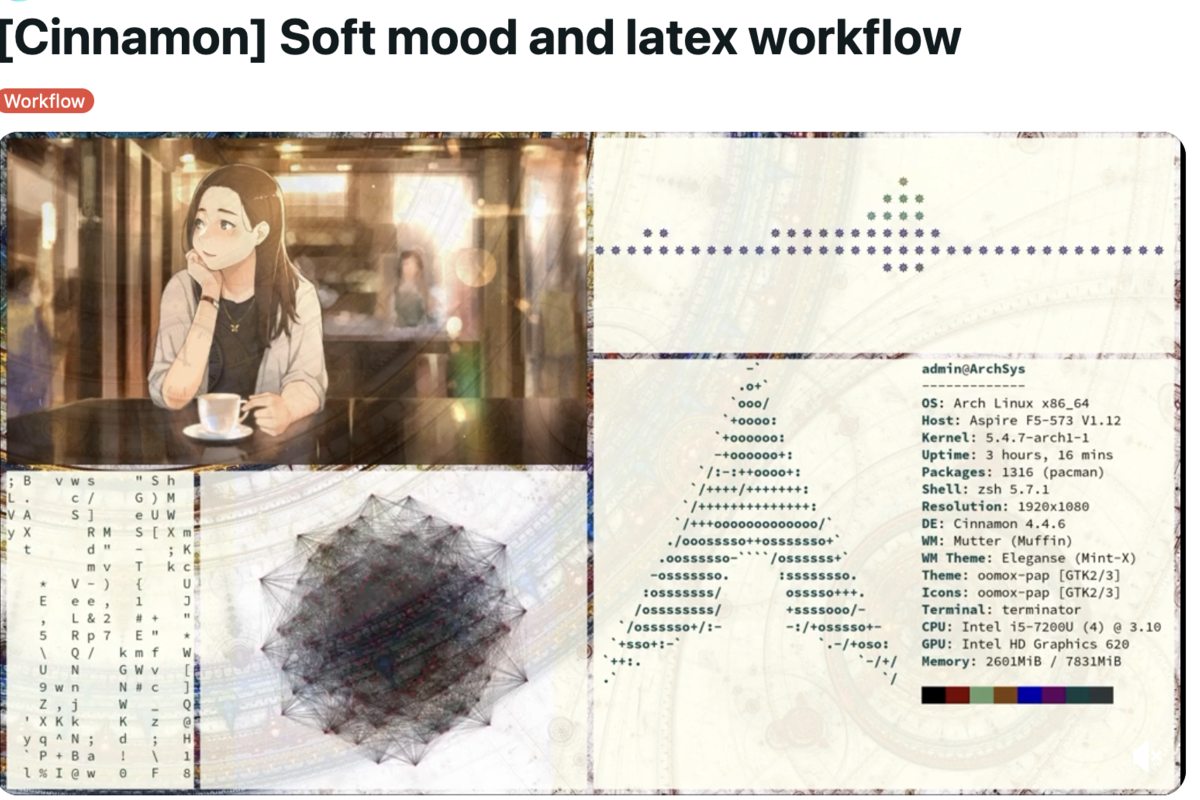
A well-configured development environment reduces cognitive overhead and allows sustained focus on the analytical task.
9 R Development Setup with Nvim-R
The nvim-R-config.lua file configures the Nvim-R plugin, which transforms Neovim into a capable R IDE with REPL integration, object inspection, and document rendering.
vim.cmd([[
iabb <buffer> x %>%
iabb <buffer> z %in%
let R_auto_start = 2
let R_enable_comment = 1
let R_hl_term = 0
let R_clear_line = 1
let R_pdfviewer = "zathura"
let R_assign = 2
let R_latexcmd = ['xelatex']
augroup rmarkdown
autocmd!
autocmd FileType rmd,r nnoremap <buffer> \
  <CR> :call SendLineToR("down")<CR>
autocmd FileType rmd,r nnoremap <buffer> \
  <space>' :call RMakeRmd("default")<cr>
autocmd FileType rmd,r noremap \
  <space>i :call RAction("dim")<cr>
autocmd FileType rmd,r noremap \
  <space>h :call RAction("head")<cr>
autocmd FileType rmd,r noremap \
  <space>p :call RAction("print")<cr>
autocmd FileType rmd,r noremap \
  <space>q :call RAction("length")<cr>
autocmd FileType rmd,r noremap \
  <space>n :call RAction("nvim.names")<cr>
autocmd FileType rmd,r vmap <buffer> \
  <CR> <localleader>sd
autocmd FileType rmd,r nmap <buffer> \
  <space>j <localleader>gn
autocmd FileType rmd,r nmap <buffer> \
  <space>k <localleader>gN
autocmd FileType rmd,r nmap <buffer> \
  <space>l <localleader>cd
augroup END
]])
Key configuration choices. R_auto_start = 2 opens an R console automatically when an R file is loaded. R_assign = 2 converts two underscores into the <- assignment operator. The iabb abbreviations expand x to %>% and z to %in% in insert mode, reducing keystrokes for common pipe and membership operators.
Custom autocmds. The augroup rmarkdown block defines file-type-specific mappings for R and Rmd files. Pressing Enter sends the current line to the R console and moves down. Space-prefixed mappings provide quick object inspection: <space>i for dimensions, <space>h for head, <space>p for print. This tight coupling between editor and REPL is what makes Nvim-R particularly effective for interactive data analysis.
10 Ubuntu Tweaks and Multiple Configurations
On Ubuntu, Neovim is available through the system package manager, though the version may lag behind the latest release. For the most current version, use the Neovim PPA or download the AppImage directly from the Neovim releases page.
sudo add-apt-repository ppa:neovim-ppa/unstable
sudo apt update
sudo apt install neovim
10.1 Working with Multiple Configurations
Neovim supports the NVIM_APPNAME environment variable, which allows running entirely separate configurations side by side. This is useful for testing new plugin setups without disturbing a working configuration.
For a thorough walkthrough, see Switching Configs in Neovim by Michael Uloth.
To start Neovim with an alternative configuration stored in ~/.config/test_nvim:
NVIM_APPNAME=test_nvim nvimThis tells Neovim to read its configuration from ~/.config/test_nvim/init.lua instead of the default ~/.config/nvim/init.lua. Each configuration maintains its own plugin state, cache, and data directories.
11 Verification
After installing Neovim and copying the configuration:
# 1. Version check
nvim --version | head -1

# 2. Plugin status (inside Neovim)
# :Lazy          — verify all plugins installed
# :checkhealth   — diagnose provider issues

# 3. R integration smoke test
# Open an .R file:
nvim test.R
# Press \rf to start R console
# Press \d to send the current line to R
If :checkhealth shows red for clipboard, install xclip (brew install xclip or sudo apt install xclip).
12 Daily Workflow
| Keybinding / Command | Action |
|---|---|
\rf |
Start R console |
\d |
Send current line to R |
\ss |
Send selection to R |
\ro |
View R object in pager |
<C-p> |
Fuzzy-find files (Telescope) |
<C-n> |
Toggle file tree |
:Lazy update |
Update all plugins |
:Lazy restore |
Restore pinned versions |
NVIM_APPNAME=test nvim |
Launch alternate config |
12.1 Things to Watch Out For
Plugin version conflicts. Lazy locks plugin versions in
lazy-lock.json. If a plugin update breaks something, restore the lock file from version control and run:Lazy restore.Clipboard integration. On headless Linux servers, the
clipboard=unnamedsetting requiresxcliporxselto be installed. Without these, yanking to the system clipboard silently fails.Terminal mode escape. The default escape sequence in Neovim’s built-in terminal is
<C-\><C-n>, which is awkward. The mappingmap('t', '<Escape>', '<C-\\><C-n>', opts)in our configuration fixes this, but it means you cannot type a literal Escape in terminal mode without an alternative binding.R console startup. With
R_auto_start = 2, Nvim-R opens the R console automatically. On slower machines or when R has a heavy.Rprofile, this can cause a noticeable delay. SetR_auto_start = 0to start R manually with\rf.Snippet directory paths. UltiSnips expects snippet directories to be on Neovim’s runtime path. If snippets are not expanding, verify the path in
g:UltiSnipsSnippetDirectoriesmatches the actual directory location.
13 Uninstall / Rollback
To remove Neovim and its configuration:
# 1. Remove configuration
rm -ri ~/.config/nvim
rm -ri ~/.local/share/nvim   # plugin data
rm -ri ~/.cache/nvim          # cache

# 2. Uninstall Neovim
brew uninstall neovim          # macOS
sudo apt remove neovim         # Ubuntu / Debian
To keep Neovim but reset to defaults, rename the config:
mv ~/.config/nvim ~/.config/nvim.backupNeovim will start with no plugins and default settings.

The pursuit of an efficient development environment parallels the broader scholarly commitment to refining one’s tools and methods.
14 What Did We Learn?
14.1 Lessons Learnt
Conceptual Understanding:
- Modal editing is not merely a different interface; it represents a fundamentally different model of text manipulation where composable commands replace mouse-driven selection.
- The separation of configuration into modular Lua files mirrors the separation-of-concerns principle in software engineering and makes each component independently testable.
- Neovim’s asynchronous architecture means plugins run without blocking the editor, which is why operations like fuzzy search and tree-sitter parsing feel instantaneous even on large files.
- The REPL-integrated workflow (edit code, send to console, inspect output) collapses the feedback loop in interactive data analysis to a single keystroke.
Technical Skills:
- Writing Lua configuration files from scratch, including understanding the
vim.cmd,vim.keymap.set, andvim.optAPIs. - Installing and managing plugins through the Lazy plugin manager, including reading
lazy-lock.jsonfor reproducible plugin states. - Configuring Nvim-R for interactive R development with custom autocmds, abbreviations, and file-type-specific key mappings.
- Setting up UltiSnips with language-specific snippet directories for rapid code template insertion.
Gotchas and Pitfalls:
- Forgetting to set
noremap = trueon key mappings can cause recursive mapping chains that freeze the editor or produce unexpected behavior. - The
iskeyword-=_setting (which treats underscores as word boundaries) improvessnake_casenavigation but breaks word completion for identifiers containing underscores. - Neovim’s built-in terminal uses terminal mode, not normal mode. Mappings defined for normal mode do not apply until you escape back to normal mode with the configured escape binding.
- The
gdefaultsetting applies substitutions globally by default (no need for the/gflag), which is convenient but reverses the meaning of/gin substitute commands — adding/gnow means “first match only.”
14.2 Limitations
- This configuration targets macOS as the primary platform. While most settings transfer directly to Linux, clipboard integration, font rendering, and GUI behavior may require platform-specific adjustments.
- The plugin selection reflects one practitioner’s workflow. Users working primarily in Python or Julia may need different language server configurations and REPL integrations.
- Nvim-R connects to a single R session. Users who need multiple concurrent R sessions or remote R connections may find this limiting compared to RStudio’s session management.
- The configuration does not include a debugger setup. Interactive debugging in R and Python requires additional plugins (nvim-dap) and configuration not covered here.
- Snippet management through UltiSnips requires learning a domain-specific snippet syntax. Users unfamiliar with snippet engines face an additional learning curve.
- This post does not address Neovim’s built-in LSP (Language Server Protocol) configuration in depth. Full autocompletion and diagnostics require language-server setup that varies by language.
14.3 Opportunities for Improvement
- Add LSP configuration for R (languageserver), Python (pyright), and Julia (LanguageServer.jl) to enable autocompletion, go-to-definition, and inline diagnostics.
- Replace UltiSnips with LuaSnip, a pure-Lua snippet engine that integrates more naturally with Neovim’s Lua ecosystem and does not require Python.
- Configure nvim-cmp for intelligent autocompletion that combines LSP suggestions, buffer words, and snippet expansions in a unified menu.
- Add a DAP (Debug Adapter Protocol) configuration for step-through debugging of R and Python scripts directly within Neovim.
- Create a custom Quarto filetype plugin with mappings for rendering, previewing, and navigating between code chunks in
.qmdfiles. - Explore the Which-Key plugin to provide a discoverable popup menu of available key mappings, reducing the memorization burden for new users.
15 Wrapping Up
Configuring Neovim for data science is an investment that pays dividends over time. The initial learning curve is real — modal editing requires deliberate practice before it becomes natural. However, once the muscle memory develops, the speed and precision of keyboard-driven editing fundamentally changes the coding experience.
The configuration presented here provides a functional starting point: Lazy manages plugins, basics.lua establishes sensible defaults, and Nvim-R connects the editor to an interactive R console. The modular structure means each component can be modified independently as your workflow evolves.
Main takeaways:
- Neovim’s Lua-based configuration is readable, version-controllable, and modular.
- The Lazy plugin manager provides reproducible plugin states through its lock file.
- Nvim-R transforms Neovim into a capable R IDE with single-keystroke code execution and object inspection.
- Investing time in key mappings and snippets yields compounding productivity gains across every editing session.
If you are considering the switch, start with a minimal configuration and add plugins gradually. The Neovim ecosystem is large, and trying to configure everything at once is overwhelming. Let your actual workflow dictate what you add next.
16 See Also
Related posts:
- Configuring the Command Line for Data Science Development — terminal and Zsh setup that complements this Neovim configuration
- Setting Up a GitHub Dotfiles Repository — version control for your configuration files
Key resources:
17 Reproducibility
This post describes a configuration-only workflow with no data analysis pipeline. The configuration files reside in ~/.config/nvim/ and are managed through version control.
Software versions used:
nvim --version | head -1
brew list --versions neovim
Configuration files described in this post:
~/.config/nvim/init.lua— Entry point, leader keys, module loading~/.config/nvim/lua/basics.lua— Core settings and key mappings~/.config/nvim/lua/nvim-R-config.lua— R development configuration~/.config/nvim/lua/plugins.lua— Lazy plugin specification~/.config/nvim/my_snippets/— UltiSnips snippet files by language
To replicate this setup, clone your dotfiles repository (or copy the files above) into ~/.config/nvim/, then open Neovim. Lazy will automatically install all specified plugins on first launch.
18 Let’s Connect
- GitHub: rgt47
- Twitter/X: @rgt47
- LinkedIn: Ronald Glenn Thomas
- Email: rgtlab.org/contact
I would enjoy hearing from you if:
- You spot an error or a better approach to any of the code in this post.
- You have suggestions for topics you would like to see covered.
- You want to discuss R programming, data science, or reproducible research.
- You have questions about anything in this tutorial.
- You just want to say hello and connect.