Setting Up pass: a Unix Password Manager
This post is a work in progress and may change.
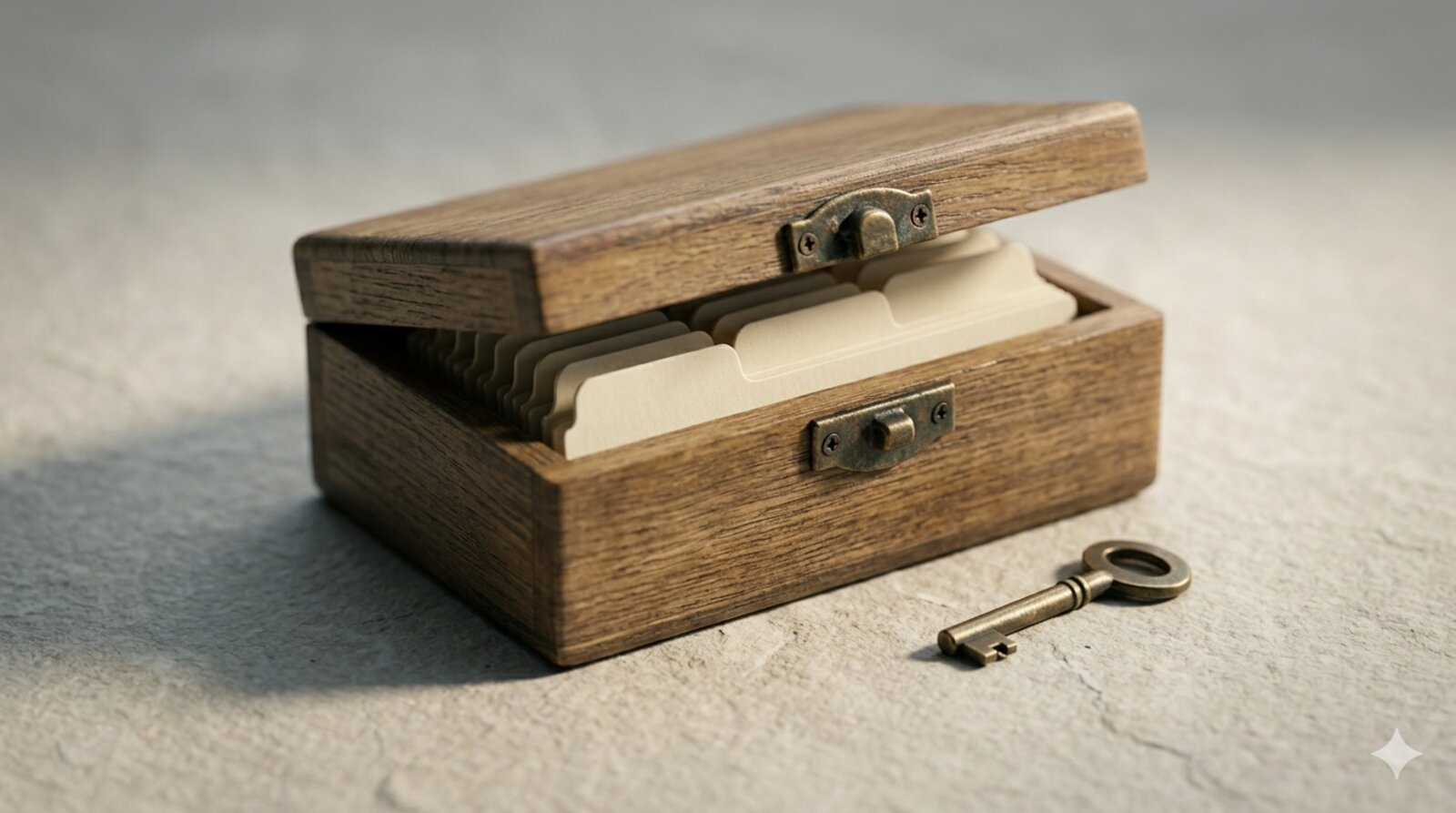
A private, organized credential store: accessible only by key, each entry discrete and retrievable.
Introduction
A password manager does not need to be a product. pass stores every credential as a GPG-encrypted file in an ordinary directory, records every change in git, and syncs through any git remote you control. No proprietary format stands between you and your secrets: any machine with GnuPG and the private key can read an entry.
Part 2 of the security series; start with Security Foundations for a Multi-Machine Research Fleet for the overview.
This post describes how the store is set up and run across a fleet of five machines: generating the key, initializing the store, tracking it in git with a private remote, using it on several machines and a phone, and protecting the key. It also covers the procedure that matters most and is least often rehearsed: replacing the key and re-encrypting the whole store after the key has been exposed. That procedure was needed in earnest after the exposure described in Migrating Off Dropbox, and the store came through it intact.
Motivations
- Browser and subscription password managers keep credentials in a format you cannot inspect, and leaving them means an export of everything in plaintext.
- Credentials for a research workflow are not only website passwords: backup passphrases, Time Machine encryption passwords and service logins all need one dependable home.
- A store tracked in git gives an audit trail: every addition, edit and deletion is a dated commit.
- A terminal-native tool fits a command-line research environment and can be called from scripts.
- GnuPG is the same tooling used to sign and verify software releases, so daily use builds a transferable skill.
Objectives
- Generate a GPG key with a sensible algorithm and expiry, and keep its revocation certificate.
- Initialize a store, add credentials, and retrieve them through the clipboard without printing them.
- Track the store in git with a private remote and use it on every workstation in the fleet.
- Know, before you need it, how to back up the key offline and how to replace it and re-encrypt the store.
This post documents the author’s own practice. Errors spotted or better approaches are welcome in the comment thread below.

What is pass?
pass is a shell script that wraps GnuPG and presents a password store as a directory tree of .gpg files under ~/.password-store/. Think of a filing cabinet in which every drawer is sealed with your key: the cabinet is just a folder, and only the holder of the private key can open a drawer. For example, pass insert email/work encrypts what you type and writes ~/.password-store/email/work.gpg; pass -c email/work decrypts that file and copies the first line to the clipboard, clearing it after 45 seconds.
Two properties follow from the design. The store is portable, because it is plain files and a standard cipher. And the security of every entry reduces to two things: the private key and its passphrase. Most of this post is about protecting those two things.
Prerequisites
- Operating system: macOS 13 or later, or a Linux distribution with bash 5 or later. The commands below were checked on macOS 26 and Linux Mint 22.
- Full-disk encryption: FileVault or LUKS turned on. The GPG agent holds the unlocked key in memory, and an unencrypted disk can leak it through swap or a lost machine. See the series overview.
- Already installed: Homebrew on macOS; GnuPG arrives as a dependency.
- Background: comfort in a shell; a basic idea of public-key cryptography helps but is not required.
- A private git host you control (optional, for sync): any machine you can reach over SSH and on which you can create a bare repository.
- Time: about 20 minutes for installation, key generation and a first test.
Installation
On macOS:
brew install pass gnupgOn Debian, Ubuntu or Linux Mint:
sudo apt install pass gnupgConfirm the versions:
pass version     # 1.7.4 or later
gpg --version    # GnuPG 2.4 or later
GnuPG prompts for the passphrase through a ‘pinentry’ program. The terminal version that ships with GnuPG works for interactive shell use. If you also want a graphical dialog, for example when pass is called from a launcher, install pinentry-mac and point the agent at it (see Things to Watch Out For).
Configuration
Step 1: Generate a GPG Key
gpg --full-generate-keyChoose:
- Key type: ECC (sign and encrypt). With Curve 25519 this produces an Ed25519 primary key and a cv25519 encryption subkey, the default in current GnuPG and the right choice for new keys: small, fast and at least as strong as RSA 4096.
- Expiration:
2y. A key that never expires stays valid forever if it leaks; a two-year expiry forces a review. Put the renewal date in a calendar now. Extending an expiry later takes a minute withgpg --edit-key KEYIDand theexpirecommand. - Name and email: the identity you will pass to
pass init. - Passphrase: six or more random words, or a 25-character random string. This passphrase protects every credential in the store.
Check the result:
gpg --list-secret-keys --keyid-format longThe output shows a sec line (ed25519, with the expiry date) and an ssb line (cv25519, capability [E]). The ssb subkey is the one pass encrypts to.
GnuPG writes a revocation certificate for the new key to ~/.gnupg/openpgp-revocs.d/ at creation time. Copy it somewhere off the machine now (see Protecting the Key). If the key is ever lost or exposed, this certificate is what lets you tell the world to stop trusting it.
Step 2: Initialize the Store
pass init you@example.orgThis creates ~/.password-store/ and a .gpg-id file naming the recipient key. Every later entry is encrypted to that key. Keep the store on a local path, never inside a folder that a sync service mirrors (Dropbox, iCloud Drive, OneDrive): a git repository in a synced folder is exposed to index corruption from sync races, and the store belongs to no sync pipeline but your own.
Step 3: Add and Retrieve Credentials
pass insert email/work          # prompts twice, never echoes
pass generate shop/example 24   # creates a random 24-char password
pass -c email/work              # clipboard, cleared after 45 s
pass ls                         # the tree of entries
pass show name (or just pass name) prints the entry. Prefer -c in any terminal that might be recorded, shared or scrolled back through later.
Multi-line entries hold the password on the first line and anything else below it:
pass insert -m service/exampleGenerate first, then paste. When a program asks you to invent a new secret in a dialog (the encryption password for a new Time Machine backup, a new account password, a disk image passphrase), create it in the store first and paste it into the dialog:
pass generate timemachine/laptop 32
pass -c timemachine/laptop
The secret is stored before it is ever used, so it cannot end up living only inside the dialog. This habit is what keeps an encrypted backup readable after the machine that made it is gone.
Step 4: Track the Store in git with a Private Remote
pass can manage a git repository inside the store and commit every change automatically:
pass git init
pass git log --oneline | head
For sync and an off-machine copy, add a remote. Use a bare repository on a machine you control, reached over SSH:
# On the host (once):
ssh you@your-host 'git init --bare git/password-store.git'

# On the first workstation:
pass git remote add origin you@your-host:git/password-store.git
pass git push -u origin main
In the fleet described in this series the remote is a bare repository on one of the Macs, and every workstation pushes to it and pulls from it over SSH. No third party ever holds the ciphertext.
Do not use GitHub, GitLab.com or any other hosted service as the remote, even with a private repository. Entry names are metadata (they list the services you use), and a breach of the host exposes that metadata and the ciphertext together.
Step 5: Keep the Store Out of Other Repositories
The most common accident is not a weak passphrase but a stray commit: a dotfiles repository created with git add . in a home directory picks up .password-store, .gnupg and .ssh with everything else. Write the guard before the first commit of any repository near your home directory:
**/.password-store/
**/.gnupg/
**/.ssh/
**/.aws/
The post’s analysis/configs/gitignore-guard.sh appends equivalent entries idempotently. If the store has already been committed to a repository that was pushed anywhere, git rm --cached is not enough: rewrite the history with git-filter-repo and treat every credential in the store as exposed. The ciphertext is protected by the key, but the entry names are now public and the ciphertext is available for offline attack for as long as the key is in use.

Using the Store on Several Machines
One GPG identity serves every workstation; the store travels through the git remote. To add a machine:
# On a machine that has the key: export it to removable media or
# another channel you trust, never through a synced folder.
gpg --export-secret-keys --armor KEYID > key.asc

# On the new machine:
gpg --import key.asc
gpg --edit-key KEYID trust   # choose 5 (ultimate) for your own key
pass git clone you@your-host:git/password-store.git \
  ~/.password-store
pass ls
rm key.asc   # full-disk encryption protects the freed blocks
There is no background sync. Make it a habit to run pass git pull before editing on a machine you have not used for a while, and pass git push after. pass commits automatically, so a forgotten push only means the other machines are behind until the next one; a conflict is resolved like any other git conflict, entry by entry.
On Linux the same commands work unchanged; the distribution packages of pass behave identically to the Homebrew build.
The order of setup on a new machine matters. Credentials must exist before anything that needs them: restore the GPG key and clone the store immediately after the dotfiles, and before configuring mail sync, cloud backups or API access.
Protecting the Key
Everything in the store is exactly as safe as the private key and its passphrase. Four practices follow.
Keep an offline backup of the key. Export the secret key and the revocation certificate to encrypted removable media (an encrypted USB drive kept away from the workstations), or print the secret key with a tool such as
paperkey(not tested here). The backup must not be on any machine in daily use or in any cloud folder: its purpose is to survive the loss of every workstation at once, through theft, fire or ransomware.gpg --export-secret-keys --armor KEYID > master-key.asc cp ~/.gnupg/openpgp-revocs.d/*.rev . # the revocation certKeep the revocation certificate in more than one place. If the only copy is on the machine that is lost, the key cannot be revoked.
Store other machines’ secrets here too. A backup passphrase that exists only on the machine it protects is lost with that machine, which makes the backup unreadable exactly when it is needed. Every Borg repository passphrase and the Time Machine encryption password in this fleet live in the store (see Research Backup Architecture).
Consider the subkey architecture. The setup above keeps the primary key, which can certify and sign, on every workstation. The stronger model keeps the primary key offline (or on a hardware token) and gives the workstations only the encryption subkey. A lost laptop then exposes a subkey that the offline primary key can revoke and replace without changing the identity. This is the recommended next step once the basic setup is stable; see Opportunities for Improvement.
Replacing the Key and Re-encrypting the Store
If the private key may have been copied (a synced settings folder, a lost machine without disk encryption, a backup in the wrong place), treat it as compromised and replace it. In this fleet that happened after the GPG directory on two machines turned out to have been a symlink into a cloud-synced folder for months. The replacement took under an hour and every entry survived:
# 1. Generate the replacement key (Ed25519, cv25519 subkey, 2y)
gpg --full-generate-key

# 2. Re-encrypt every entry to the new key. pass rewrites .gpg-id,
#    re-encrypts the whole tree and commits the result.
pass init NEW_KEY_ID
pass git push

# 3. Revoke the old key with its revocation certificate
gpg --import old-key-revocation.rev
Then, on every other machine: delete the old secret key, import the new one, and pass git pull. Finally, check that nothing still encrypts to the old key (cat ~/.password-store/.gpg-id on each machine should name the new key).
Re-encrypting the store protects the future, not the past. Anyone who obtained the old key and an old copy of the store can still decrypt that copy. If the old ciphertext might also have leaked, every credential in it must be rotated at the service as well. That rotation, and the discipline of confirming that old credentials are really dead, is covered in Secrets Management.
Migrating from Another Password Manager
The pass website lists import scripts for most managers (1Password, KeePass, LastPass, browser exports). The pattern is the same for all of them:
- Export to CSV on a machine with full-disk encryption, into a folder that no sync service mirrors.
- Run the importer (for example
1password2pass.rb export.csv). - Spot-check entries with
pass -c, especially multi-line notes and custom fields, which importers handle unevenly. - Delete the export at once. It contains every password in plaintext.
A 648-entry 1Password vault imported in under two minutes. Importing moves passwords; it does not improve them. Regenerating weak or reused ones is a separate, gradual task.
Verification
gpg --list-secret-keys --keyid-format long   # key present, not expired
cat ~/.password-store/.gpg-id                # names the right key
pass insert test/smoke && pass -c test/smoke # round trip works
pass git status                              # clean, tracking origin
pass rm test/smoke
If the round trip copies to the clipboard without a decryption error and pass git status reports a clean tree that is up to date with origin, the store is working and synced.
Daily Workflow
| Command | Action |
|---|---|
pass ls |
List all entries |
pass -c name |
Copy password to clipboard (45 s) |
pass insert name |
Add a credential |
pass insert -m name |
Add a multi-line entry |
pass generate name 32 |
Create and store a random password |
pass edit name |
Edit in $EDITOR |
pass mv old new |
Rename or move an entry |
pass rm name |
Delete an entry |
pass git pull / push |
Sync with the private remote |
pass git log |
Audit history |
Things to Watch Out For
Clipboard managers defeat the 45-second clear. Any clipboard history tool, and Apple’s Universal Clipboard between Macs signed in to the same account, captures what
pass -ccopies and may keep or sync it. Excludepassfrom clipboard history, or turn history off. On Linux,pass -cneedswl-copy,xcliporxsel.Passphrase prompts from a non-terminal context. The terminal pinentry cannot prompt when
passruns from a launcher or GUI. The symptom is a decryption failure with no prompt. Installpinentry-macand add to~/.gnupg/gpg-agent.conf:pinentry-program /opt/homebrew/bin/pinentry-mac default-cache-ttl 300 max-cache-ttl 600then run
gpg-connect-agent reloadagent /bye. The cache values are a trade-off: shorter means more prompts and less exposure on an unattended machine.An expired key makes every entry unreadable. The error is not obvious. When decryption fails unexpectedly, check
gpg --list-secret-keysfor an expiry date in the past, and extend it withgpg --edit-key KEYIDthenexpire.A printed secret is an exposed secret.
pass namein a session that is logged, screen-shared or pasted into a chat or an issue puts the secret in someone else’s records. Use-c, and rotate any secret that was printed where others can read it.The phone has its own SSH key. Pass for iOS generates its own key pair for the git remote. Add the app’s public key to the host’s
authorized_keys; the desktop key will not work on the phone. The symptom is ‘permission denied (publickey)’ on every sync.Changing the recipient re-encrypts everything.
pass initwith a different key ID rewrites every file. That is exactly what you want when replacing a key; make sure it is what you want otherwise, and push the result so the other machines do not keep committing to the old recipient.The store directory must never be inside a synced folder or another repository. See Steps 2 and 5. Audit with
ls -la ~ | grep -- '->': a home-directory settings folder that is a symlink into a sync service is the failure mode that forced this fleet’s key replacement.
Uninstall / Rollback
Back up first: export the secret key and keep a copy of the store (a git clone from the remote is enough).
# 1. Remove the store (irreversible without a backup)
rm -rf ~/.password-store

# 2. Remove the key (irreversible without a backup)
gpg --list-secret-keys --keyid-format long
gpg --delete-secret-and-public-key KEYID

# 3. Remove the tools
brew uninstall pass gnupg      # or: sudo apt remove pass gnupg
What Did We Learn?
Lessons Learned
Conceptual Understanding:
passcomposes two well-audited tools, GnuPG for cryptography and git for history and sync, instead of reimplementing either. That is why it is easy to trust and easy to recover.- The store’s security is the key’s security. Hardening effort belongs around the key: passphrase, offline backup, revocation certificate, and where its directory lives.
- Encrypted data that leaks is still a security event: entry names are metadata, and old ciphertext stays decryptable by anyone who also holds the old key.
- A secret that lives only on the machine it protects is not backed up. The store is the natural home for every passphrase the fleet depends on.
Technical Skills:
pass init NEW_KEY_IDre-encrypts the whole store in one command, which turns key replacement from a project into a routine.pass gitproxies any git command to the store, so sync, history and recovery use the git you already know.- GnuPG writes a revocation certificate at key creation; the work is keeping copies of it somewhere other than the machine itself.
- A bare repository on a machine you control is all the sync server that several workstations and a phone need.
Gotchas and Pitfalls:
- A home-directory settings folder symlinked into a sync service silently uploads the private key. Check for symlinks before trusting any sync setup.
- A stray
git add .in the home directory is the most common way the store ends up in the wrong repository; the.gitignoreguard has to come first. - Clipboard history and Universal Clipboard bypass the clipboard clear.
- An expired key fails with an unhelpful error; check expiry first.
Limitations
- Sync is manual. There is no daemon; pulls and pushes are a habit, not a guarantee.
- One identity across machines. Every workstation holds the same private key, so the compromise of any one is the compromise of all, until the subkey architecture limits workstations to a revocable subkey.
- The phone needs the private key. Importing it on iOS is a deliberate, sensitive step, and the phone becomes one more place the key lives.
- No breach monitoring.
passdoes not check entries against breached-password lists. - Loss of the key, or of its passphrase, loses everything. The offline backup is not optional.
Opportunities for Improvement
- Move to the subkey architecture: primary key offline or on a hardware token, encryption subkey only on the workstations.
- Hold the encryption subkey on a hardware security key so it never exists on disk.
- Add a periodic check (part of the quarterly audit) that every machine’s store is in sync with the remote and that the key’s expiry is more than three months away.
- Use
pass-otpfor time-based one-time codes that should not live on the phone that is also the second factor (weigh this carefully: it puts both factors behind one key). - Prune entries for defunct accounts once a year.
Wrapping Up
pass reduces a password manager to its essentials: encrypted files, a history, and a remote you control. The setup takes an afternoon and runs unchanged on macOS and Linux. The store proved its design when it mattered: after the GPG key was exposed through a synced settings folder, a single pass init re-encrypted every entry to a new key, the other machines pulled the result, and no credential was lost.
The lasting work is around the key rather than the store. Keep the revocation certificate and an offline backup somewhere that would survive losing every workstation, keep the store out of synced folders and other repositories, and put every passphrase the fleet depends on into the store, generated there before it is used anywhere else.
Main takeaways:
- The store is only as safe as the private key and its passphrase.
- Use a private git remote on a machine you control, never a hosted service.
- Generate secrets in the store first, then paste them where needed.
- Rehearse key replacement:
pass init NEW_KEY_ID, revoke, pull everywhere, rotate whatever the old ciphertext could reveal. - Keep an offline backup of the key and its revocation certificate.
See Also
Security series:
- Security Foundations for a Multi-Machine Research Fleet
- Setting Up pass: a Unix Password Manager (this post)
- Secrets Management for the Workflow Construct
- Migrating Off Dropbox: Beyond Dotfiles
- Research Backup Architecture: Borg, Cloud Copies, and Time Machine
- A Home Server for a Five-Machine Research Fleet
- Object Storage for Research Data: The Layer Git Cannot Hold
- Running the Quarterly Security Audit for the First Time: What Actually Broke
- Finding Why a Backup Fails: Correlating Logs Across Sleep, Locks, and Networks
External references:
- passwordstore.org: the official site, with import scripts and companion apps.
- GnuPG documentation
- git-filter-repo: history rewriting after an accidental commit.
Reproducibility
| Component | Version |
|---|---|
| macOS | 26.6 |
| Linux | Linux Mint 22.3 |
| pass | 1.7.4 |
| GnuPG | 2.5 (macOS), 2.4 (Linux) |
| Shell | zsh (macOS), bash (Linux) |
| Last verified | 2026-10-01 |
Configuration files (in analysis/configs/):
gpg-agent.conf: thepinentry-macand cache settings from Things to Watch Out For, item 2.gitignore-guard.sh: appends the sensitive-directory guard to a dotfiles.gitignore.
Core setup:
brew install pass gnupg
gpg --full-generate-key          # ECC, Curve 25519, 2y
pass init you@example.org
pass git init
pass insert test/smoke && pass -c test/smoke
Appendix A: Pass for iOS
The Pass for iOS app reads the same encrypted files and syncs through the same private remote.
A.1 Confirm the Remote
pass git remote -v    # origin  you@your-host:git/password-store.git
pass git push
The phone must be able to reach the host. A remote reachable only on the home network syncs only at home; a host on a private overlay network such as Tailscale is reachable wherever the phone runs the overlay client.
A.2 Export the Key for the Phone
gpg --export --armor KEYID > public.asc
gpg --export-secret-keys --armor KEYID > private.asc
Transfer private.asc to the phone directly (AirDrop is acceptable; the file is protected by the passphrase). Do not email it or place it in a cloud folder. Delete both files from the computer and from the phone’s Files app once imported.
A.3 Configure the App
- Install Pass - Password Store from the App Store.
- In Settings → Password Store, set the repository URL to the private remote.
- In Settings → SSH Key, let the app generate its own key, copy the public half, and append it to
~/.ssh/authorized_keyson the host as a separate entry. - In Settings → PGP Key, import
private.ascand enter the passphrase. - Tap Sync and open a known entry to confirm decryption.
A.4 Common Snags
- ‘Permission denied (publickey)’: the app’s own SSH key is not in the host’s
authorized_keys. - ‘No secret key’: the key imported on the phone does not match
.gpg-id. After a key replacement the phone needs the new key too. - Sync works at home only: the host is reachable only on the LAN; see A.1.
Let’s Connect
Questions, suggestions, or corrections are welcome.
- GitHub: rgt47
- Twitter/X: @rgt47
- LinkedIn: Ronald Glenn Thomas
- Email: Contact form
I would like to hear from you if:
- You find an error, or a better approach to anything in this series.
- You run a small research fleet and have found where this design breaks.
- You want to compare notes on backups, secrets, or reproducible research infrastructure.